Ship and pickup in one order in Shopify Checkout
Your customers can choose to mix items for shipping and items for in-store pickup in the same order with the Shopify Checkout. By letting customers combine shipped and pickup items in a single checkout, you can reduce cart abandonment, increase order value, and make more of your inventory available across fulfillment centers and retail stores. Pickup orders can also bring customers into your stores, creating opportunities for additional purchases.
For example, a customer ordering a coffee machine and some bags of coffee beans can choose to pick up the beans from your retail location, and wait for the coffee machine to ship. To do this, your customers would do the following steps in the online checkout:
- Navigate to checkout from their cart, and then select the Pickup option.
- Specify which items they want to pick up (the coffee beans) and which items they want to ship (the coffee machine).
- Select their desired pickup location (your retail store) and shipping address (their house).
- Complete the remainder of the checkout as per usual.
These selections from checkout are carried over to the order confirmation page, the order status page, and all order notification emails. Orders with both ship and pickup options display with multiple fulfillments in the Shopify admin, so you know which items to ship and which items the customer will pick up, and from which location.
On this page
Considerations for ship and pickup in one order
Before activating the option to ship and pickup in one order in checkout, review the following considerations:
- This feature applies only to the Shopify Checkout. Storefront pages, such as product pages or the cart, can't set the delivery options for each item before moving to the checkout.
- You must have at least 1 location activated for in-store pickup and 1 for shipping. Shipping profiles should be configured to reflect the items and locations that you want to support. Learn more about setting up order fulfillment for locations.
- Pick up points and local delivery aren't supported as options in a checkout with mixed delivery methods.
- Each order can have only 1 pickup location selected. Customers can't split pickups across multiple locations, or request pickups for certain items be ready across multiple days.
- Orders with mixed delivery options generate separate fulfillments in the Shopify admin, grouped by delivery method. Review your fulfillment workflows to ensure your team can handle split orders.
- Shipping costs follow your existing shipping profiles. By default, flat rates are based on the order total regardless of whether some items are for pickup. Review your rate rules to ensure that they align with your pricing goals.
- If you offer in-store pickup options to B2B customers, then only locations that offer in-store pickup to both B2B and non-B2B customers can support split delivery methods in a single order.
- If you use third-party apps that interact with orders, shipping, or fulfillment, then they might require updates to work with orders with split delivery methods. Learn more about third-party app compatibility.
Considerations for third-party app compatibility
If you use third-party apps that interact with delivery, fulfillment, or order logic, then verify that they work correctly with split delivery methods before activating this feature:
- Fulfillment and Order Management System (OMS) apps should check the delivery method on fulfillment orders so that third-party logistics (3PLs) don't accidentally ship items meant for in-store pickup.
- Shipping rate and insurance apps shouldn't apply shipping insurance to pickup items, but might want to offer adjusted pricing for the shipped portion of a mixed order.
- If you use the local pickup delivery option generator function to rearrange the pickup locations in checkout based on custom business logic, then split delivery methods in a single order is supported only for customer-driven split orders. Inventory-driven split orders, such as those prompted when an item isn't available for pickup at a location, aren't supported for this feature.
- Discount apps might give you options for handling shipping discounts differently on mixed delivery orders versus shipping-only orders.
- Email apps might display only 1 delivery method in order confirmation or fulfillment emails. Confirm that emails display delivery details for both shipped and pickup items.
- Checkout UI extensions might not display or behave as expected in checkouts with both shipped and pickup items. Confirm that your checkout customizations render correctly. For example: address validators shouldn't run on in-store pickup addresses; dynamic banners shouldn't assume only 1 delivery method for the checkout (such as displaying "Shipping delays expected for Item X", when Item X was selected as a pickup item).
- Order editors or order management apps might display fulfillments unexpectedly when an order has both ship and pickup items. Ensure that your staff and customers can clearly identify which fulfillments correspond to which items when editing or managing an order.
- Post-purchase upsell apps might assume that upsell items will be shipped to the customer, even when the customer has selected some items to be picked up.
Contact your app providers directly to confirm their support for ship and pickup orders.
Tax considerations for ship and pickup in one order
In a ship and pickup order, the shipped items and the pickup items can be taxed differently. Taxes are calculated based on origin and delivery destination.
Tax services that calculate rates automatically based on tax registrations include:
- Shopify Tax
- Basic Tax, available only in supported regions.
- Avalara
- Vertex
Manual Tax is also supported, and checkout won't prevent an order from splitting. Manual tax applies the rates that you configure, including any rates that you've customized, rather than recalculating them based on origin and destination.
Customer experience when selecting shipping and local pickup options in checkout
When a customer's cart includes items where both shipping and local pickup are available, they can select each delivery method per item during checkout. The delivery method selections for each item carry over to the order confirmation page, order status page, and order notification emails, so they can always refer back to which methods were selected for each item.
By default, all items are set to be shipped in any given online checkout. The customer must choose the Pickup tab and then edit the Pickup all items option to begin selecting which items will be shipped instead.
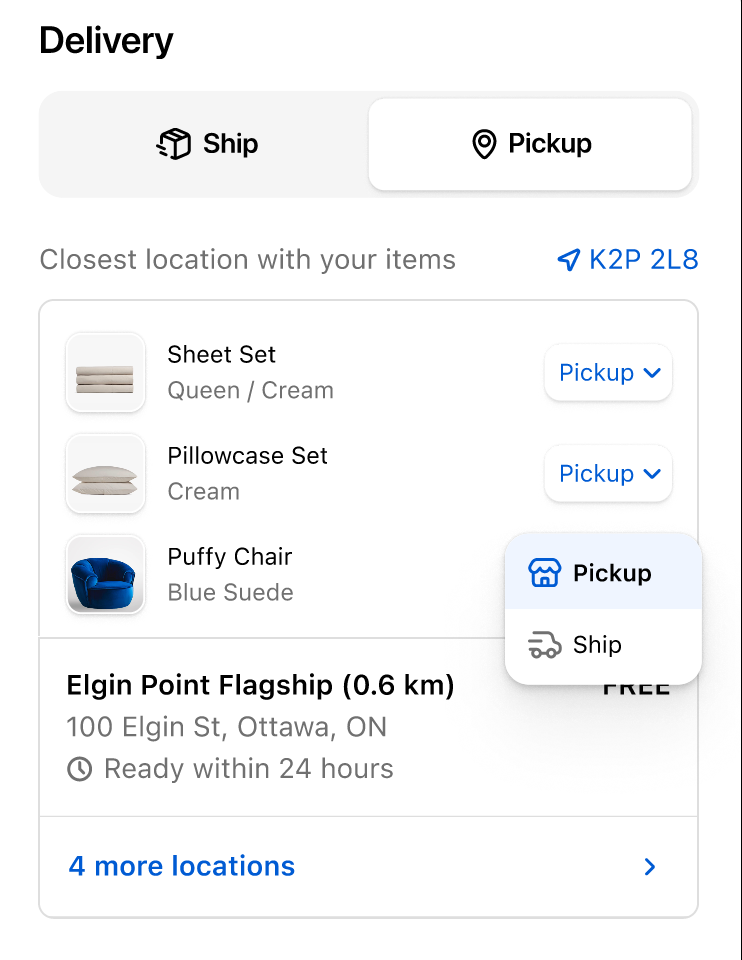
Steps:
- Create a cart with eligible items and continue to the checkout.
- In the delivery method selector, select Pickup.
- Select which specific items they want shipped instead:
- In the Pickup menu, click All items.
- For each item, leave the item as Pickup or click to change it to Ship.
- Optional: In the pickup section, click Location to select a different pickup location for all pickup items. By default, the checkout selects the nearest location with available items.
- In the shipping section, specify the Ship to address and the Shipping method and rate.
- Complete the order's payment information and continue to the order confirmation.
Activate the ship and pickup in one order feature test drive
Ship and pickup in one order is available by way of a feature test drive for Shopify Plus and Enterprise merchants.
Steps:
- From your Shopify admin, go to Settings > Feature test drives.
- Find Ship and pickup in one order and then click Activate feature on stores.
- In the dialog, a list of your stores displays. You can filter by staging or production stores. You can complete the following actions:
- Turn on Automatically activate on all future stores to automatically activate the feature on all your new stores.
- Select the Stores checkbox to select all stores in the current view or the entire organization.
- Select a checkbox next to a store name to select the individual stores. You can select as many stores as you want.
- Click Save.
- Ensure that your locations and delivery profiles are configured with both shipping and local pickup options.
- Test the checkout experience with items that are eligible for both delivery methods before rolling out the feature to customers.
Test the ship and pickup in one order feature
After you activate the feature test drive, you should place test orders to verify that your store settings and checkout handle the ship and pickup in one order capabilities correctly.
Some examples of things to test including the following elements:
- Add different combinations of items that are available for shipping and pickup in the cart and proceed to checkout.
- Move at least 1 item from pickup into shipping, and at least 1 item from shipping into pickup.
- Complete a test checkout and confirm that the following elements behave as expected:
- Shipping rates calculate according to your configured shipping profiles and rate rules. For example, flat rates apply to the order total by default, and weight- or price-based rates apply only to the shipped items.
- Shipping discounts and order-level promotions apply correctly.
- Order confirmation and fulfillment emails include the correct shipping and pickup details.
- The order displays separate fulfillments in your Shopify admin, including the correct items for shipping and pickup respectively.
- Shipped items and pickup items route to the correct fulfillment locations.