For each loop (iterate)
The For each loop (iterate) action performs steps on every item in a list, when that action is connected to the Repeat for each item option. This action functions only on lists, such as line items in an order, or lists returned by any Get data-type actions, such as Get collection data, Get customer data, or Get product data.
After you add the For each loop (iterate) action, you must configure additional steps for how the loop iterates on each item in the provided list. Unlike the True/False branching of conditions, the For each loop (iterate) action has a defined order of operations of its branches:
- The Repeat for each item branch occurs first, and repeats steps to perform on every entry in the list. The actions in this branch occur as many times as the number of items in the provided list.
- The After last item branch occurs last, and lets you define steps to continue the workflow. This step is taken after all the actions performed by Repeat for each item for every item in the list are complete.
For example, you create a workflow that runs every Monday. The workflow uses the Get order data action to retrieve orders placed during that week. The For each loop (iterate) then applies a New order tag to each order returned by the getOrderData list. After all of the orders in the list are tagged, an internal email is sent indicating that tagging is complete.

On this page
Considerations for using the For each loop (iterate) action
Review the following considerations before you use the For each loop (iterate) action:
- The list that you use in the For each loop (iterate) action can't have more than 1,000 items. If the selected list has more than 1,000 items, then the workflow fails and all actions following the For each loop (iterate) action aren't taken.
- The following actions can't follow Repeat for each item:
- You can nest only 1 For each loop (iterate) action inside of another For each loop (iterate) action.
Fields
The For each loop (iterate) action contains the following fields.
| Field | Description |
|---|---|
| List | Required. The list of items to perform an action on. For example, this can be a list returned by a Get data or Run code action, or a list returned by a trigger, such as a list of line items returned by the Order created trigger. When selecting a variable, only array objects ( []) display as selectable options. |
Triggers
The For each loop (iterate) action can be used in any workflow.
Monitoring workflows
After a workflow has run, you can review its performance on the Shopify Flow Activity page. The following is true for workflows that contain a For each loop (iterate) action:
- The Status and Action sections apply to all the actions taken by the For each loop (iterate) action.
- The workflow preview highlights how many items in the loop followed a particular path.
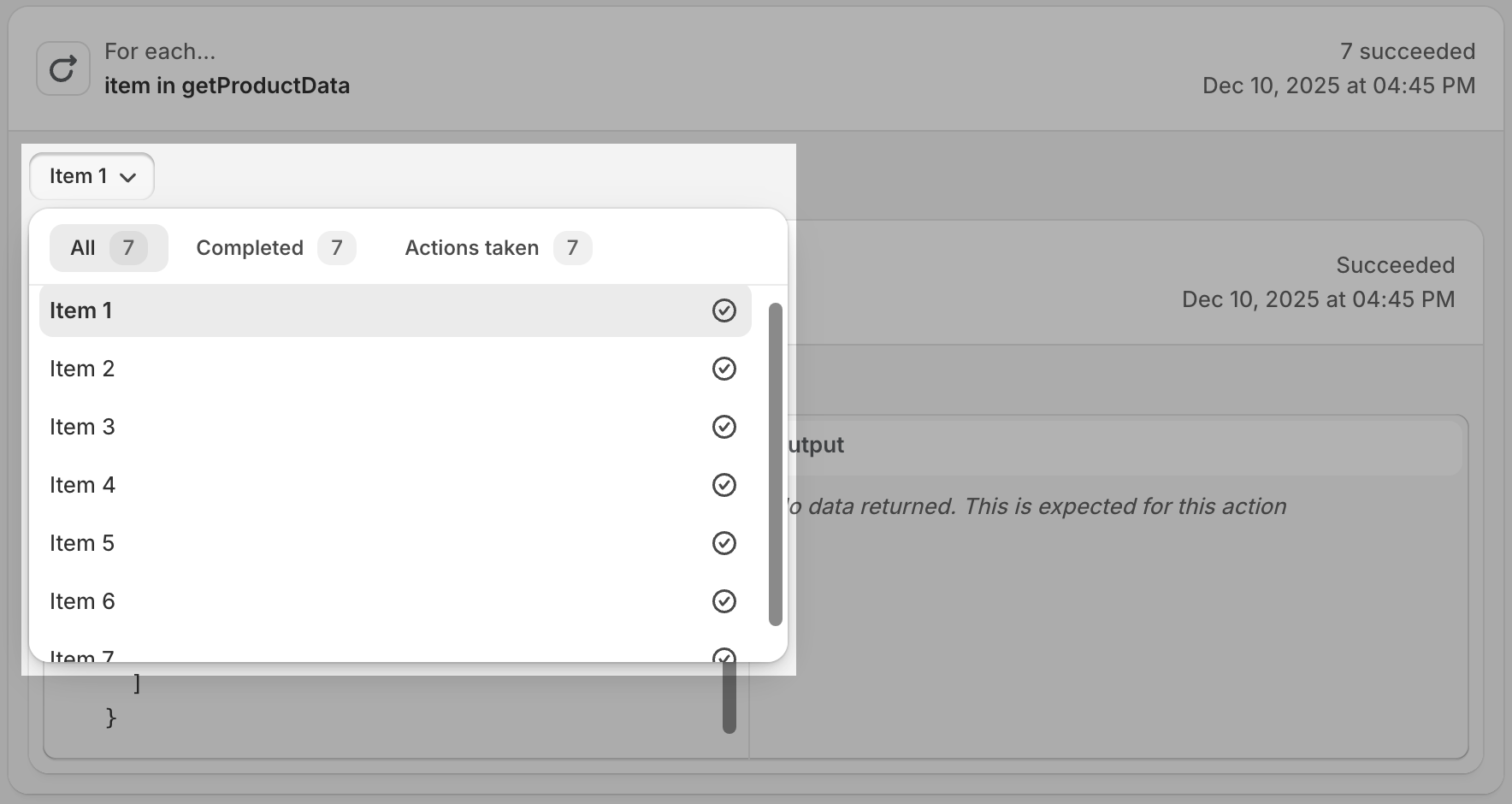
- The Run details section, including the preview of the workflow, displays the results from each loop iteration. Use the Item menu in the run's step details to filter results by actions taken and errors in order to quickly troubleshoot loops.
Templates
Add line items to Google Sheets rows when a new order is placed
When a new order is created, a For each loop (iterate) step in a workflow loops over each line item to add the product data to a Google Sheet row. View template.
Add products with a tag to a collection in the future
At a time in the future, get all products with a certain tag and then add them to a collection. View template.
Allow ordering for companies created by company account requests
Assign an ordering permission when a company is created by a company account request. View template.
Cancel orders if customer placed more than 5 orders today
Cancels orders if a customer places more than 5 orders within a single day. It checks the number of orders placed by a customer in the last 24 hours and cancels any orders exceeding this limit, tagging the customer for potential fraud. View template.
Convert a customer metafield into tags for all customers
This workflow backfills tags onto all of your customers based on a metafield value. It runs every hour and fetches up to 100 customers that don't have a processed tag. For each customer, it looks at the value of a custom.test metafield and adds it as a tag. The workflow also adds a processed tag so that it isn't returned in the next scheduled run of the workflow. To use the workflow, you must change the metafield namespace and key to match a metafield in your shop.
View template.
Delete inactive customers
Delete customer profiles over 5 years old that have never placed an order. View template.
Delete inactive products
Delete products with no inventory that haven't been updated in a year. View template.
Fulfill any digital items in an order
Fulfills any items that have no physical delivery required, such as digital items, or that match a list of SKUs. Runs once for each fulfillment location (the 'fulfillment order') for a new order. View template.
Hold fulfillments if a customer placed multiple orders in 24 hours
Check to determine if a customer has placed multiple orders within a 24 hour period. If true, then hold the fulfillments and consolidate shipping. View template.
Hold orders if customer placed more than 1 order in last 24 hours
When an order is created, check if customer placed any other orders in the last 24 hours. If so, then place all orders on hold. View template.
Publish products with a certain tag in the future
On a date in the future, get products with a certain tag and publish them. This workflow uses the Scheduled time trigger and Get product data action. View template.
Release fulfillment hold on exchange items when the return is closed
When a return is closed, check if there is an outstanding balance on the order. If there is no order balance, then release the exchange items. View template
Remove new product tag 90 days after the product was created
Every day, gets up to 100 products that were created more than 90 days ago and which still have the new tag. The workflow then removes those tags for each product.
View template.
Schedule products to be removed from Online Store at the specified date and time
At a single date in the future, remove products from online store by tag, ID, or SKU. Makes use of Scheduled time trigger and Get product data action. View template.
Send B2B order invoice to multiple email addresses
Send invoices for B2B orders to multiple email addresses. This uses the email addresses saved as metafields in a company location, when they exist, or first creates 3 metafields, extra_invoice_recipient.email1, .email2, and .email3, when they don't already exist.
View template.
Send Order and Line Items to Google Sheets
Output each Order Line Item to a row in Google Sheets. View template.
Tag and send a daily summary of late fulfillments
Every day, tag and send a daily email summary that counts the total number and dollar value of all orders that miss a 2-day shipping guarantee. View template.
Tag customers that have a chargeback
Every hour, this workflows gets orders with chargebacks and adds a tag to the customer for the order. Makes use of the Scheduled time trigger, and Get order data action. View template.
Tag orders with associated UTM campaign
Adds tags to orders that contain the names of any associated UTM campaigns. View template.
Tag unfulfilled orders older than 2 days
Every day, the workflow gets all unfulfilled orders older than 2 days and adds a tag to the order. View template.
Track product variants that are on sale using a product metafield
Sets a metafield on a product if at least one of its variants is on sale. This can be useful for tracking which products are currently on sale. View template.